React Frontend Switch to HTTPS
This time we will switch another frontend to HTTPS; it is Clematis Cosmic made with React. The first step is again to generate the self-signed certificate in a preferred way.
Generate Mkcert Certificates
I'm using the same server as the previous section to use mkcert:
mkcert 192.168.1.118 clematis.cosmic
Optionally, move the certificates to a separate folder:
mkdir -p deploy/cosmic/ui/certs
mv *.pem deploy/cosmic/ui/certs/
Jenkins Configuration
The copy of the certificate files should be placed to some other place where it is possible to upload them to the internal Jenkins storage for secret files.
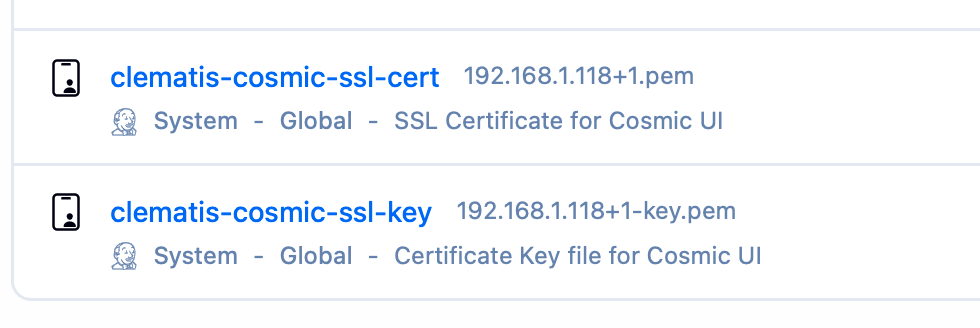
For example, the names can now be: clematis-cosmic-ssl-cert and clematis-cosmic-ssl-key,
to avoid conflicts with the other certificates.
The result should look like this:
Storing The Certificate In A Docker Volume
Now the Jenkins pipeline can be used to export files from Jenkins internal storage to the remote Docker volume, the certificate files have to be uniquely named to avoid conflicts.
pipeline {

    agent any
    tools { nodejs "Node22" }
    environment {
        CERT_DIR = "${WORKSPACE}/docker/nginx/ssl"
    }

    stages {

        # ... The rest of the pipeline

        stage('Prepare Directories') {
          steps {
            sh '''
              mkdir -p "${CERT_DIR}"
              chmod 700 "${CERT_DIR}"
              ls -al "${CERT_DIR}"
            '''
          }
        }

        stage('Deploy Certificates') {
          steps {
            withCredentials([
              file(credentialsId: 'nginx-ssl-cert', variable: 'SSL_CERT'),
              file(credentialsId: 'nginx-ssl-key', variable: 'SSL_KEY')
            ]) {
              sh '''
                cp "$SSL_CERT" "${CERT_DIR}/clematis-cosmic-ssl-cert.crt"
                cp "$SSL_KEY" "${CERT_DIR}/clematis-cosmic-ssl-key.key"
                chmod 644 "${CERT_DIR}/clematis-cosmic-ssl-cert.crt"
                chmod 600 "${CERT_DIR}/clematis-cosmic-ssl-key.key"
              '''
            }
          }
        }

        stage('Prepare SSL Volume') {
          steps {
            sshagent (credentials: ['yoda-anton-key']) {
              sh '''
                # 1. Ensure the volume exists (does nothing if it already exists)
                ssh ${SSH_DEST} "docker volume create jenkins_ssl_certs"

                # 2. Stream and overwrite files (tar overwrites by default)
                tar -C "${CERT_DIR}" -cf - . | ssh ${SSH_DEST} "docker run --rm -i -v jenkins_ssl_certs:/ssl alpine tar -C /ssl -xf -"

                # 3. Update permissions on the new/updated files
                ssh ${SSH_DEST} "docker run --rm -v jenkins_ssl_certs:/ssl alpine sh -c 'chmod 644 /ssl/clematis-cosmic-ssl-cert.crt && chmod 600 /ssl/clematis-cosmic-ssl-key.key'"
              '''
            }
          }
        }

        // ...
    }

    post {
        always {
          sh '''
            rm -rf "${CERT_DIR}"
          '''
        }
    }
}
To recap:
- Create the directory to store certificate in the workspace
- Copy the certificate to the directory created above
- Prepare an SSL volume and copy the certificate to it.
- Deploy the applications to the Docker containers
- Remove the directory with certificates from the workspace
Docker Compose Modification
The next step is to make sure the Docker container will get the files from the Docker volume; it should be mounted to the application container:
version: '3.9'
services:
  clematis-cosmic-ui:
    container_name: clematis-cosmic-ui
    image: clematis.cosmic.ui:latest
    ports:
      - '18080:443'
    volumes:
      - ssl_certs:/etc/nginx/ssl:ro
    networks:
      - clematis
    restart: unless-stopped

volumes:
  ssl_certs:
    name: jenkins_ssl_certs
    external: true

networks:
  clematis:
    driver: bridge
Adding SSL To Nginx
Mind the same file names for the certificate and the key as in the previous section, (volume contains all the files):
server {
    listen 443 ssl;
    server_name localhost;

    ssl_certificate     /etc/nginx/ssl/clematis-cosmic-ssl-cert.crt;
    ssl_certificate_key /etc/nginx/ssl/clematis-cosmic-ssl-key.key;

    ssl_protocols       TLSv1.2 TLSv1.3;
    ssl_ciphers         HIGH:!aNULL:!MD5;

    client_max_body_size 200M;

    location /api/ {
        proxy_pass http://192.168.1.118:18089/api/;
        proxy_http_version 1.1;
        proxy_set_header Upgrade $http_upgrade;
        proxy_set_header Connection 'upgrade';
        proxy_set_header Host $host;
        proxy_set_header   X-Forwarded-Host $host;
        proxy_set_header   X-Forwarded-Server $host;
        proxy_set_header   X-Forwarded-Proto https;
        proxy_set_header   X-Forwarded-Port 18080;
        proxy_set_header   X-Real-IP $remote_addr;
        proxy_cache_bypass $http_upgrade;
    }

    ...(other locations)

    location / {
        root /var/www/html;
        index index.html index.htm;
        try_files $uri $uri/ /index.html;
    }
}

server {
    listen 3000;
    server_name localhost;
    return 301 https://$host$request_uri;
}
After securing user - browser communication, the application backend should be secured as well. Overwise some browsers like Safari will not allow connecting to the application.
Please keep in mind that Spring Hateoas should be taken into account in proxy configuration, it needs to know the original host and port of the user request. Therefore, the application backend also has to have the following configuration:
server:
  forward-headers-strategy: framework